students → teacher
Hear every student’s session without AirDrop.
Students send whatever their DAW is playing straight to the teacher’s Mac over the classroom Wi‑Fi. The teacher clicks a name and listens. Nothing to install for students, stereo at 320 kb/s, about 50 ms behind. The reverse of CCAST.
How it works
Open the desk
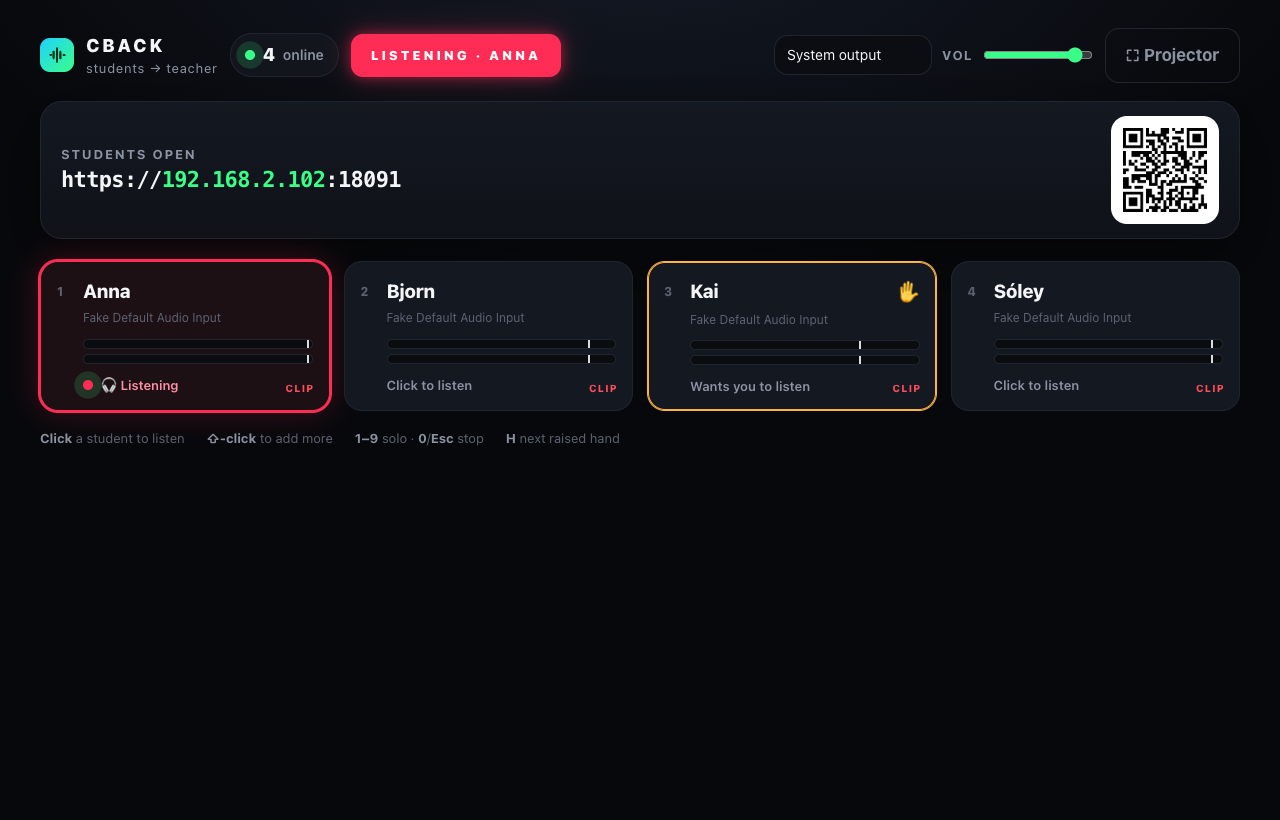
Click CADCAST in the Dock. Chrome opens the desk; project the link and QR code.
Students join
They scan, type a name, press Join, and press Start broadcast when they want to be heard. They stay muted until then.
Click to listen
Click a tile to hear that student, ⇧‑click for several, 1–9 to jump, H for the next raised hand.
The student’s side
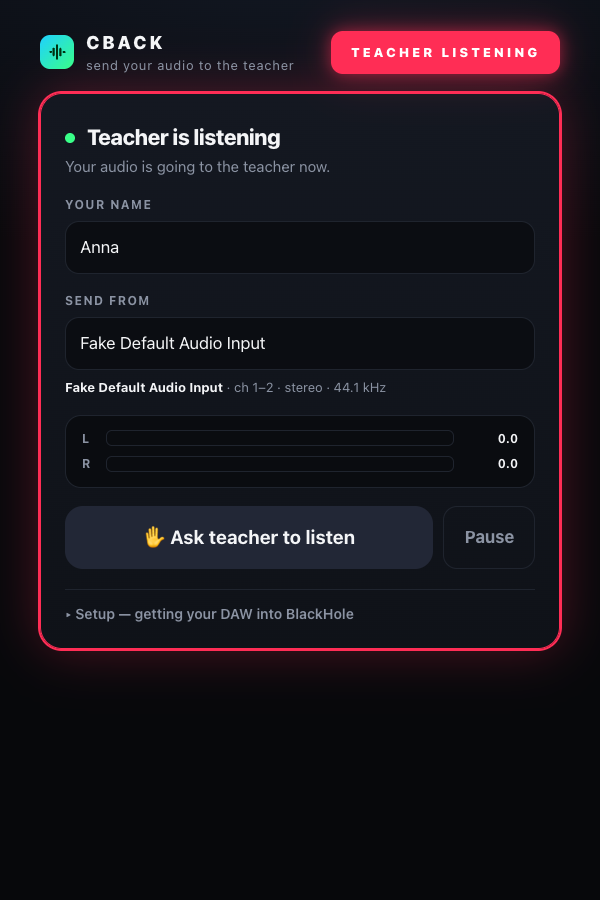
- Name + Join. BlackHole 2ch is picked automatically when present.
- Start broadcast is their mute button, off every time the page opens. Nothing leaves the laptop until they press it.
- Meters show the signal, and warn when there’s no signal or the wrong device is picked.
- ✋ Ask teacher to listen raises a hand on the desk.
- A red TEACHER LISTENING light comes on while they broadcast and the teacher listens. Audio only leaves the laptop then.
- Stop broadcast mutes them instantly.
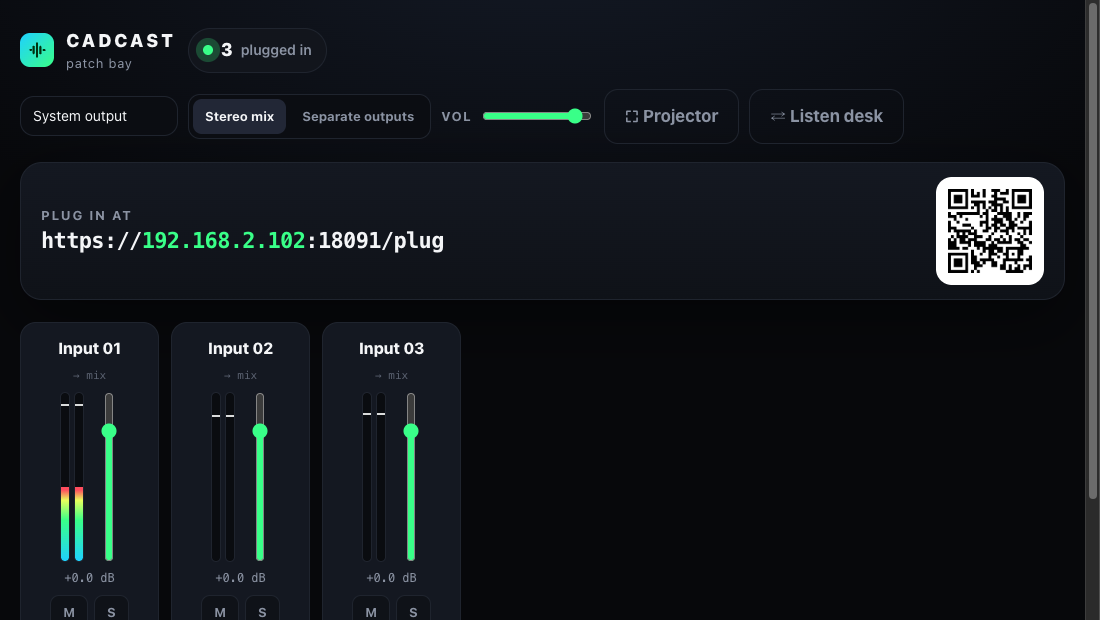
Second way: the patch bay
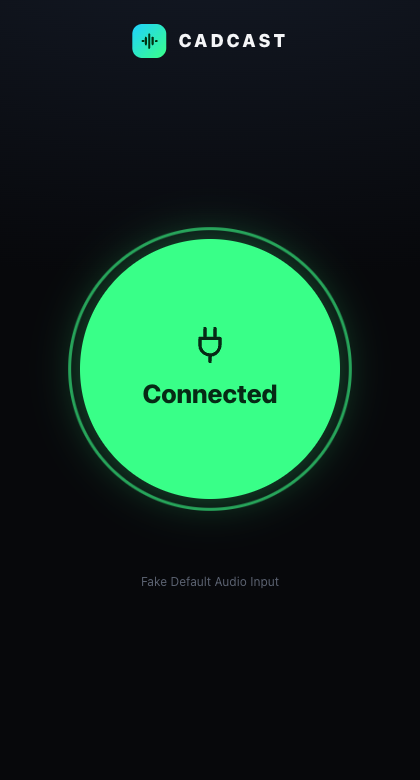
- Students see one button: Connect → Connected. They’re live while connected, like a cable in a jack.
- You get a channel per connection, named for you: Input 01, Input 02 … Everyone plays at once, with meters, fader, mute and solo.
- Stereo mix to your headphones, or separate outputs: Input N on channels 2N−1/2N of a multichannel device such as BlackHole 16ch, one DAW track each.
- Runs next to the listen desk; one click switches between them.
Setup
Teacher’s Mac
Download, unzip to ~/CADCAST, and drag CADCAST.app to the Dock. First launch: right‑click → Open, allow incoming connections, allow the microphone once (used only to name output devices). Needs Python 3 (built into macOS) and Chrome.
Student laptops
Install BlackHole 2ch. Make a Multi‑Output Device (headphones + BlackHole) and set it as the DAW’s output, so they still hear themselves. On the CADCAST page pick BlackHole 2ch, not the Aggregate.
First visit
Chrome warns “not private” because the link is https with the teacher Mac’s own certificate: Advanced → Proceed, once. Browsers only allow audio capture on secure pages.
Everyone must be on the same network. School Wi‑Fi that isolates devices blocks it; a travel router or phone hotspot fixes that.
Details
| Audio | Stereo Opus, 48 kHz, 320 kb/s, echo cancellation / noise suppression / AGC off |
| Delay | ≈ 50 ms on a good LAN (WebRTC, peer‑to‑peer, ~40 ms jitter buffer) |
| Server | One Python file, standard library only; only a tiny signalling mailbox, no audio passes through it |
| Privacy | The desk opens only on the teacher’s Mac; students can’t listen to each other. Works offline. |
| Ports | 8090 (desk) · 8091 (students, https). Runs alongside CCAST (8080 / 8443). |